This is the multi-page printable view of this section. Click here to print.
Administration
1 - Automated Backup
Navidrome version 0.54.x introduces a backup feature that allows the music server’s data to get periodically exported. This guide will walk you through configuring backups using both a configuration file and environment variables, where to locate the backups, and how to restore from a backup.
Configuring Backup with config.toml
To configure backups using the navidrome.toml file, insert the following lines to set up backups:
[Backup]
Path = "/path/to/backup/folder"
Count = 7
Schedule =  "0 0 * * *"
- Backup.Path: The directory where backups will be stored. Replace “/path/to/backup/folder” with the desired path.
- Backup.Count: The number of backup files to keep.
- Backup.Schedule:
cron-like syntax to define how often backups occur. The example above schedules a backup every 24 hours at midnight.
Configuring Backup with Environment Variables
Alternatively, you can configure backups using environment variables ND_BACKUP_PATH, ND_BACKUP_SCHEDULE, and ND_BACKUP_COUNT.
environment:
  ND_BACKUP_PATH: /backup
  ND_BACKUP_SCHEDULE: "0 0 * * *"
  ND_BACKUP_COUNT: 7
volumes:
  - ./data:/data
  - ./backup:/backup
Manually Creating a Backup
You can manually create a backup via the navidrome backup create command:
sudo navidrome backup create
If you use docker compose, you can do the same with:
sudo docker compose run <service_name> backup create
# service_name is usually `navidrome`
When manually creating a backup, no prune cycle is run, so none of the existing backups will be pruned. However,
next time the automated backup process runs, the normal prune cycle will run and potentially remove several backups
until the number of backups is down to the configured backup count setting. To manually run a prune cycle, use the
navidrome backup prune command:
sudo navidrome backup prune
If you use docker compose, you can do the same with:
sudo docker compose run <service_name> backup prune
# service_name is usually `navidrome`
Locating Backup
Once configured, Navidrome will store backups in the directory specified by the BackupFolder or ND_BACKUP_PATH setting. To verify the location:
- Check the Config File: If using a configuration file, look for the
Backupconfig node and confirm that all three options are configured. - Check Environment Variables: If using environment variables, ensure that all three variables is set correctly.
Restoring a Backup
When you restore a backup, the existing data in the database is wiped and the data in the backup gets copied into the database.
Note: YOU MUST BE SURE TO RUN THIS COMMAND WHILE THE NAVIDROME APP IS NOT RUNNING/LIVE.
Restore a backup by running the navidrome backup restore command.
Attention
Restoring a backup should ONLY be done when the service is NOT running. You’ve been warned.Additional Resources
For more detailed configuration options and examples, refer to the Navidrome Configuration Options page. This resource provides comprehensive guidance on customizing Navidrome to fit your needs.
By following this guide, you can effectively set up and manage backups for your Navidrome music server, ensuring your data is protected and easily recoverable.
2 - Command-Line Interface (CLI)
Navidrome includes a built-in CLI for administration tasks, maintenance, and troubleshooting.
Use this page as a practical reference for common command-line workflows and examples.
Quick start
Use the built-in help:
navidrome --help
Get help for a specific command:
navidrome <command> --help
navidrome <command> <subcommand> --help
If you run navidrome with no subcommand, it starts the server.
Running the CLI in Docker / Docker Compose
If Navidrome runs in a container, run CLI commands through that container so they use the same
/data, /music, and environment/config as your server.
Docker Compose
Use docker compose run with your Navidrome service name (typically navidrome):
# Show CLI help
docker compose run --rm navidrome --help

# Run a full scan
docker compose run --rm navidrome scan --full

# List users
docker compose run --rm navidrome user list
If your Navidrome service is already running and you want to run commands in that same container,
you can use docker compose exec:
docker compose exec navidrome navidrome user list
With exec, include the navidrome binary explicitly before the subcommand.
Docker (docker run)
Start a one-off container with the same mounts and settings used by your main Navidrome container:
docker run --rm \
  --user $(id -u):$(id -g) \
  -v /path/to/music:/music:ro \
  -v /path/to/data:/data \
  --env-file /path/to/navidrome.env \
  -e ND_CONFIGFILE=/data/navidrome.toml \
  deluan/navidrome:latest \
  user list
For consistency, keep image tag, volumes, and environment variables aligned with your running instance.
Global flags
These flags are available across commands:
-c, --configfile: Load a specific config file-n, --nobanner: Disable startup banner--musicfolder,--datafolder,--cachefolder-l, --loglevel,--logfile
Example:
navidrome -c /etc/navidrome/navidrome.toml --nobanner
Command overview
The built-in top-level administrative commands are: inspect, scan, backup, pls, service, and user.
inspect
Inspect music file tags as Navidrome sees them.
navidrome inspect <file1> [file2 ...]
Supported output formats (-f, --format):
prettytomlyamljsonjsonindent(default)
Example:
navidrome inspect --format yaml "/music/Artist/Album/Track01.flac"
scan
Run a library scan from the CLI.
navidrome scan
Useful flags:
-f, --full: Ignore timestamps and check all subfolders-t, --target: Scan specific folders usinglibraryID:folderPathpairs (repeatable)--target-file: Read targets from a file (onelibraryID:folderPathper line)
Examples:
# Full scan
navidrome scan --full

# Scan only selected folders
navidrome scan -t 1:Music/Rock -t 2:Audiobooks

# Read scan targets from file
navidrome scan --target-file ./scan-targets.txt
backup (alias: bkp)
Manage database backups.
navidrome backup --help
Subcommands:
navidrome backup create(alias:c)navidrome backup prune(alias:p)navidrome backup restore(alias:r)
Common flags:
backup create:-d, --backup-dirbackup prune:-d, --backup-dir,-k, --keep-count,-f, --forcebackup restore:-b, --backup-file(required),-f, --force
Important
navidrome backup restore must be run while Navidrome is not running.Examples:
# Create a backup in the configured backup path
navidrome backup create

# Prune and keep only the newest 7 backups
navidrome backup prune --keep-count 7

# Restore from a specific backup file (offline only)
navidrome backup restore --backup-file /backups/navidrome.db.2026-04-01-040000
pls (playlist export)
Export playlists to M3U and list playlists from the CLI.
navidrome pls --playlist <playlist-name-or-id>
Useful flags:
-p, --playlist(required): Playlist name or ID-o, --output: Output file path (-or omitted writes to stdout)
Examples:
# Export a playlist to stdout
navidrome pls --playlist "Road Trip Mix"

# Export a playlist to a file
navidrome pls --playlist "Road Trip Mix" --output ./road-trip.m3u8
pls also includes a list subcommand to enumerate playlists:
# List all playlists (CSV)
navidrome pls list

# List playlists for a specific user as JSON
navidrome pls list --user alice --format json
pls list flags:
-u, --user: Filter by username or user ID-f, --format: Output format (csvorjson, default:csv)
service (alias: svc)
Manage Navidrome as an OS service.
navidrome service --help
# same as: navidrome svc --help
Subcommands:
installuninstallstartstopstatusexecute
Example:
# Install as a service
navidrome svc install

# Start and verify status
navidrome svc start
navidrome svc status
service command is mainly intended for native OS service setups. In containerized deployments, lifecycle is typically managed by Docker/Compose/Kubernetes instead.user
Administer Navidrome users from the CLI.
navidrome user --help
Subcommands:
create(alias:c)delete(alias:d)edit(alias:e)list
Examples:
# Create an admin user
navidrome user create --username alice --email alice@example.com --admin

# Edit user role
navidrome user edit --user alice --set-regular

# Update password interactively
navidrome user edit --user alice --set-password

# List users as JSON
navidrome user list --format json

# Delete user by username or ID
navidrome user delete --user alice
Notes and best practices
- Use
--helpfrequently: command options can evolve between releases. - Prefer explicit
--configfilewhen running administrative commands in scripts. - For destructive operations (
backup restore, aggressivebackup prune), verify paths and make an extra copy first.
3 - Security Considerations
Permissions
You should NOT run Navidrome as root. Ideally you should have it running under its own user. Navidrome only
needs read-only access to the Music Folder, and read-write permissions to the Data Folder.
Encrypted passwords
To be able to keep compatibility with the Subsonic API and its clients, Navidrome needs to store user’s passwords in its database. By default, Navidrome encrypts the passwords in the DB with a shared encryption key, just for the sake of obfuscation as this key can be easily found in the codebase.
This key can be overridden by the config option PasswordEncryptionKey. Once this option is set and Navidrome is restarted, it will re-encrypt all passwords with this new key. This is a one-time only configuration, and after this point the config option cannot be changed anymore or else users won’t be able to authenticate.
Network configuration
Even though Navidrome comes with an embedded, full-featured HTTP server, you should seriously consider running it behind a reverse proxy (Ex: Caddy, Nginx, Traefik, Apache) for added security, including setting up SSL. There are tons of good resources on the web on how to properly setup a reverse proxy.
When using Navidrome in such configuration, you may want to prevent Navidrome from listening to all IPs configured
in your computer, and only listen to localhost. This can be achieved by setting the Address flag to localhost.
Externalized authentication
When externalized authentication is enabled, Navidrome trusts the authenticated user header (configured with the ExtAuth.UserHeader option, by default Remote-User).
In principle, the authenticated user header is ignored if requests don’t come from a reverse proxy trusted with the ExtAuth.TrustedSources option. This check can however be fooled by requests with a forged source IP address if the reverse proxy can be bypassed (e.g. a request sent by a compromised service running next to Navidrome).
When using externalized authentication in a fresh installation, the first user created through this method will automatically be granted admin privileges, consistent with the behavior when creating the first user through the web interface.
Listening on a UNIX socket
If you are listening on a UNIX socket (Address option) and enable externalized authentication (ExtAuth.TrustedSources configured with the special value @), any process able to write to the socket can forge authenticated requests.
Make sure to properly protect the socket with user access controls (see the UnixSocketPerm option).
Reverse proxy with a dynamic IP address
Navidrome does not support resolving hostnames in the ExtAuth.TrustedSources configuration option.
In scenarios where the reverse proxy has a dynamic IP address, for example when you use docker, you might consider using 0.0.0.0/0 to allow requests from the reverse proxy. This essentially disables the check, so you have to make sure that only the reverse proxy can send requests to Navidrome.
In particular with docker and docker-compose, without extra configuration containers are usually placed on the same default network and can therefore freely communicate.
Potential HPP vulnerability
When externalized authentication is enabled, Navidrome currently does not disable the other authentication methods. This could potentially create an HTTP Parameter Pollution vulnerability if the reverse proxy is misconfigured, or due to a bug or oversight in Navidrome.
You should make sure that the authenticated user header is always set for requests against protected endpoints. As a rule of thumb, for an externalized authentication setup, the only endpoints that are not protected are /rest/* (depending on whether your proxy can handle the subsonic authentication scheme) and /share/*.
Transcoding configuration
To configure transcoding, Navidrome’s WebUI provide a screen that allows you to edit existing transcoding configurations and to add new ones. That is similar to other music servers available in the market that provide transcoding on-demand.
The issue with this is that it potentially allows an attacker to run any command in your server. This married with the fact that some Navidrome installations don’t use SSL and/or run it as a super-user (root or Administrator), is a recipe for disaster!
In an effort to make Navidrome as secure as possible, we decided to disable the transcoding
configuration editing in the UI by default. If you need to edit it (add or change a configuration),
start Navidrome with the ND_ENABLETRANSCODINGCONFIG set to true. After doing your changes,
don’t forget to remove this option or set it to false.
Limit login attempts
To protect against brute-force attacks, Navidrome is configured by default with a login rate limiter,
It uses a Sliding Window
algorithm to block too many consecutive login attempts. It is enabled by default and you don’t need to do anything.
The rate limiter can be fine tuned using the flags AuthRequestLimit and AuthWindowLength and can be disabled by
setting AuthRequestLimit to 0, though it is not recommended.
4 - Anonymous Data Collection
Overview
Navidrome includes an anonymous usage statistics feature designed to help improve the project for all users. This page explains what data is collected, how it is used, and how to opt out if you prefer not to participate.
Key Principles
- Anonymous Data Only: Navidrome collects only non-personal, anonymous data to guide future improvements.
- What’s Collected: See Collected Data.
- What’s NOT Collected: No emails, IP addresses, usernames, or other identifiable data. See Excluded Data.
- Opt-Out Available: Enabled by default, but you can disable it anytime.
- In-House Data Handling: Collected data goes to an open-source server hosted by the project—no third-party services.
- Full Transparency: Logs and UI indicators show when data is sent and what it contains.
What Will Be Collected?
Below is a plain-English explanation of what each field is generally intended to represent. Each field corresponds to a piece of information about the running application or its environment:
Top-level Fields
InsightsID: A unique, randomly generated identifier for a given Navidrome instance. It’s a random ID that allows reports from the same instance to be grouped together. It is NOT directly connected to any of your data, and it cannot be used to directly identify you or your instance.
Version: Shows which Navidrome version each report came from. In aggregate analysis, this tells you how many users are on a particular version and can highlight upgrade patterns.
Uptime: The amount of time an instance has been running. When aggregated, this helps gauge the overall stability and average runtime before restarts across the community.
Build Information
Information about custom builds. Aggregated, this can reveal common build configurations used by the community, and if there are any issues (e.g. performance impact or high memory usage) specific to certain build configurations.
Build.Settings: Key-value pairs representing the compile-time settings for Navidrome (build tags, compiler options, etc.).
Build.GoVersion: The version of Go used to compile Navidrome.
OS Information
OS.Type: Operating system type (e.g., “linux”, “windows”, “darwin”). When aggregated, this shows the distribution of OS usage.
OS.Distro: OS distribution name for Linux-based systems (e.g., “ubuntu”, “debian”). Useful in aggregate form to see which Linux distributions are most common.
OS.Version: The version of the operating system or distribution. Aggregating these versions helps track environment trends and legacy OS usage.
OS.Containerized: Whether Navidrome is running in a containerized environment (Docker, Kubernetes, etc..)
OS.Arch: CPU architecture (e.g., “amd64”, “arm”). This allows to understand how Navidrome is typically deployed (e.g., on Raspberry Pis vs. standard x86 servers).
OS.NumCPU: The number of logical CPUs available. Aggregated, it helps form a picture of typical hardware profiles used across deployments.
Memory Information
Aggregated memory usage helps analyze typical resource consumption patterns and, together with other metrics, help identify causes for memory leaks.
Mem.Alloc: Current memory allocated by the Go runtime (in bytes).
Mem.TotalAlloc: Memory allocated over the lifetime of the application.
Mem.Sys: Total memory requested from the underlying system.
Mem.NumGC: Number of completed garbage collection runs. Collected in aggregate, this shows a high-level overview of how Navidrome manages memory across various deployments.
File System Information
Each FS-related field captures information about the directories or storage mediums used by Navidrome. Aggregating this data can help understand how frequently different types of storage are configured and where media content is commonly stored. This information is just the type of the filesystem (ex: nfs, ext4, ntfs…) used for each type of storage, not the actual path.
FS.Music: File system type for storing music files.
FS.Data: File system type storing Navidrome’s database.
FS.Cache: File system type storing cached data.
FS.Backup: The file system type for backups.
Each of these includes Type, describing the kind of storage (e.g., local disk, network mount). Aggregating them
shows how widely different storage setups are used, and their impact on performance.
Library Information
These fields represent aggregate counts of media items and user data within each instance’s library. Across many deployments, they help illustrate general usage trends of the Navidrome library functionality.
Library.Tracks: Total number of songs (tracks).
Library.Albums: Total number of albums.
Library.Artists: Count of distinct artists.
Library.Playlists: Number of playlists.
Library.Shares: Number of shares (public links).
Library.Radios: The count of radio station entries or streaming sources.
Library.ActiveUsers: Number of currently active users in the last 7 days. This helps understand the average load the server is operating under.
Library.ActivePlayers: Number of currently active players in the last 7 days. This allows to understand what are the most used players.
Configuration Settings
These are various Navidrome configuration flags and settings. In aggregate, they help show which features are commonly enabled or how the service is typically set up across the community. These are mostly boolean flags or simple settings, NO identifiable data is collected (paths, ids, tokens, etc..). For a reference of what each one represents, take a look at the configuration options page in the documentation.
- Config.LogLevel
- Config.LogFileConfigured
- Config.TLSConfigured
- Config.ScanSchedule
- Config.TranscodingCacheSize
- Config.ImageCacheSize
- Config.EnableArtworkPrecache
- Config.EnableDownloads
- Config.EnableSharing
- Config.EnableStarRating
- Config.EnableLastFM
- Config.EnableListenBrainz
- Config.EnableSpotify
- Config.EnableMediaFileCoverArt
- Config.EnableJukebox
- Config.EnablePrometheus
- Config.SessionTimeout
- Config.SearchFullString
- Config.RecentlyAddedByModTime
- Config.PreferSortTags
- Config.BackupSchedule
- Config.BackupCount
- Config.DefaultBackgroundURL
- Config.DevActivityPanel
- Config.EnableCoverAnimation
In Summary:
When gathered from many Navidrome instances, these metrics and settings are invaluable in understanding the aggregate
patterns of usage, deployment environments, media collections, and configuration preferences. This aggregated data
is not intended for diagnosing single-instance issues; rather, it provides a high-level view of how Navidrome is
deployed and used by its community overall.
Here’s a sample of the data sent: https://gist.github.com/deluan/1c8944fb92329c1658d96bb72a8e8db4
Data Retention
- Sent daily
- Retained for 30 days, then permanently deleted.
What Will NOT Be Collected?
To protect your privacy, the following will not be collected:
- No Personal Information: No emails, usernames, or anything identifiable.
- No Network Information: No IP addresses or device fingerprints.
- No Detailed Playback History: Individual song plays are not tied to specific users.
- No Library Details: Song/artist/album/playlist names are excluded.
- No Sensitive Configuration Data: Passwords, tokens, or logs with personal info are never collected.
Why Collect This Data?
Collecting anonymous usage statistics helps:
- Identify popular platforms and configurations.
- Prioritize features and fixes based on usage patterns.
- Ensure updates don’t unintentionally disrupt the majority of users.
Privacy and Transparency
Transparency Measures
- Human-Readable Documentation: This page explains all details in a clear, accessible way.
- Log Transparency: Each data submission logs:
- The exact payload sent.
- The destination URL. Example:
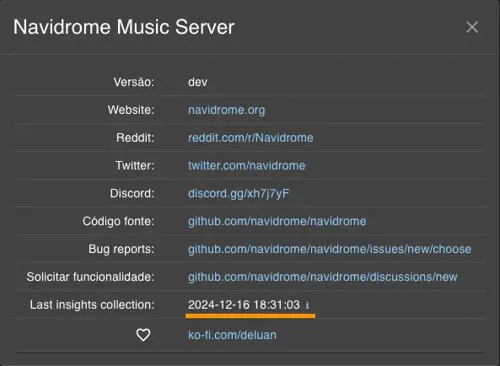
Sent Insights data (for details see http://navidrome.org/docs/getting-started/insights data="{\"id\":\"4c457065-101a-435a-b158-244b573579cd\",\"version\":\"0.53.3-SNAPSHOT (7f47e0a53)\",\"uptime\":0,\"build\":{\"settings\":{\"-buildmode\":\"exe\",\"-compiler\":\"gc\",\"-ldflags\":\"-extldflags '-static -latomic' -w -s -X github.com/navidrome/navidrome/consts.gitSha=7f47e0a53 -X github.com/navidrome/navidrome/consts.gitTag=v0.53.3-SNAPSHOT\",\"-tags\":\"netgo\",\"CGO_ENABLED\":\"1\",\"GOAMD64\":\"v1\",\"GOARCH\":\"amd64\",\"GOOS\":\"linux\",\"vcs\":\"git\",\"vcs.modified\":\"true\",\"vcs.revision\":\"7f47e0a5373d1ea067de8929c828ee0cd85a0795\",\"vcs.time\":\"2024-12-15T02:01:46Z\"},\"goVersion\":\"go1.23.4\"},\"os\":{\"type\":\"linux\",\"distro\":\"qts\",\"version\":\"5.2.2\",\"arch\":\"amd64\",\"numCPU\":4},\"mem\":{\"alloc\":2750544,\"totalAlloc\":9076584,\"sys\":14243080,\"numGC\":4},\"fs\":{\"music\":{\"type\":\"ext2/ext3/ext4\"},\"data\":{\"type\":\"ext2/ext3/ext4\"},\"cache\":{\"type\":\"ext2/ext3/ext4\"},\"backup\":{\"type\":\"ext2/ext3/ext4\"}},\"library\":{\"tracks\":85200,\"albums\":6255,\"artists\":1319,\"playlists\":26,\"shares\":19,\"radios\":7,\"activeUsers\":1},\"config\":{\"logLevel\":\"debug\",\"transcodingCacheSize\":\"100GB\",\"imageCacheSize\":\"50GB\",\"enableArtworkPrecache\":true,\"enableDownloads\":true,\"enableSharing\":true,\"enableStarRating\":true,\"enableLastFM\":true,\"enableListenBrainz\":true,\"enableMediaFileCoverArt\":true,\"enableSpotify\":true,\"enableCoverAnimation\":true,\"sessionTimeout\":\"168h0m0s\",\"recentlyAddedByModTime\":true,\"backupSchedule\":\"5 4 * * *\",\"backupCount\":5,\"devActivityPanel\":true,\"defaultBackgroundURL\":true}}" server="https://insights.navidrome.org/collect" status="200 OK" - UI Indicator: You will be able to see the last submission date/time in the About dialog:
How to Opt-Out
Data collection is enabled by default, but you can disable it anytime, by setting the new config option
EnableInsightsCollector (or ND_ENABLEINSIGHTSCOLLECTOR env var) to false. If you have EnableExternalServices
set to false, it will also disable the insights collection.
Detailed instructions will be provided in the release notes.
Data Collection Server
The data collection server is open-source and hosted by the Navidrome project, ensuring secure, in-house handling. Check it out: Navidrome Insights Server.
Thank You for Your Support
By allowing anonymous usage statistics, you’re contributing to the future of Navidrome. Your trust is invaluable, and if you’re uncomfortable, you can always opt out—no questions asked.
For questions or concerns, feel free to reach out via:
Thank you for being part of the Navidrome community!
Deluan
Navidrome Developer